How to use Onzy
A friendly walkthrough of everything.
No manual to read cover to cover. Pick the part you're curious about, and it's explained in plain language — what it is, why it helps, and the few taps to use it. Start anywhere.
Onzy is built for the moment you know what to do but can't quite start. Everything below is designed around that — small steps, gentle nudges, and wins that actually feel like wins. Here's how each piece works.
Getting started
Setting up Onzy takes a couple of minutes. You make an account, answer a few light questions about what usually trips you up, and add one thing you want to get done. Then you're in — and everything lives behind three simple tabs along the bottom of the screen.
Why it helps: A short setup means you actually finish it. Onzy learns a little about your barriers up front so the coach can meet you where you are, instead of treating you like everyone else.
A few simple steps
- Open Onzy and tap Get started — sign up with email or Google.
- Answer a couple of quick questions about what makes starting hard for you.
- Add your very first task — one small thing you'd like to get done today.
- You'll land on Home. From here on, the three tabs below are home base.
Tasks: add it, break it down, finish it
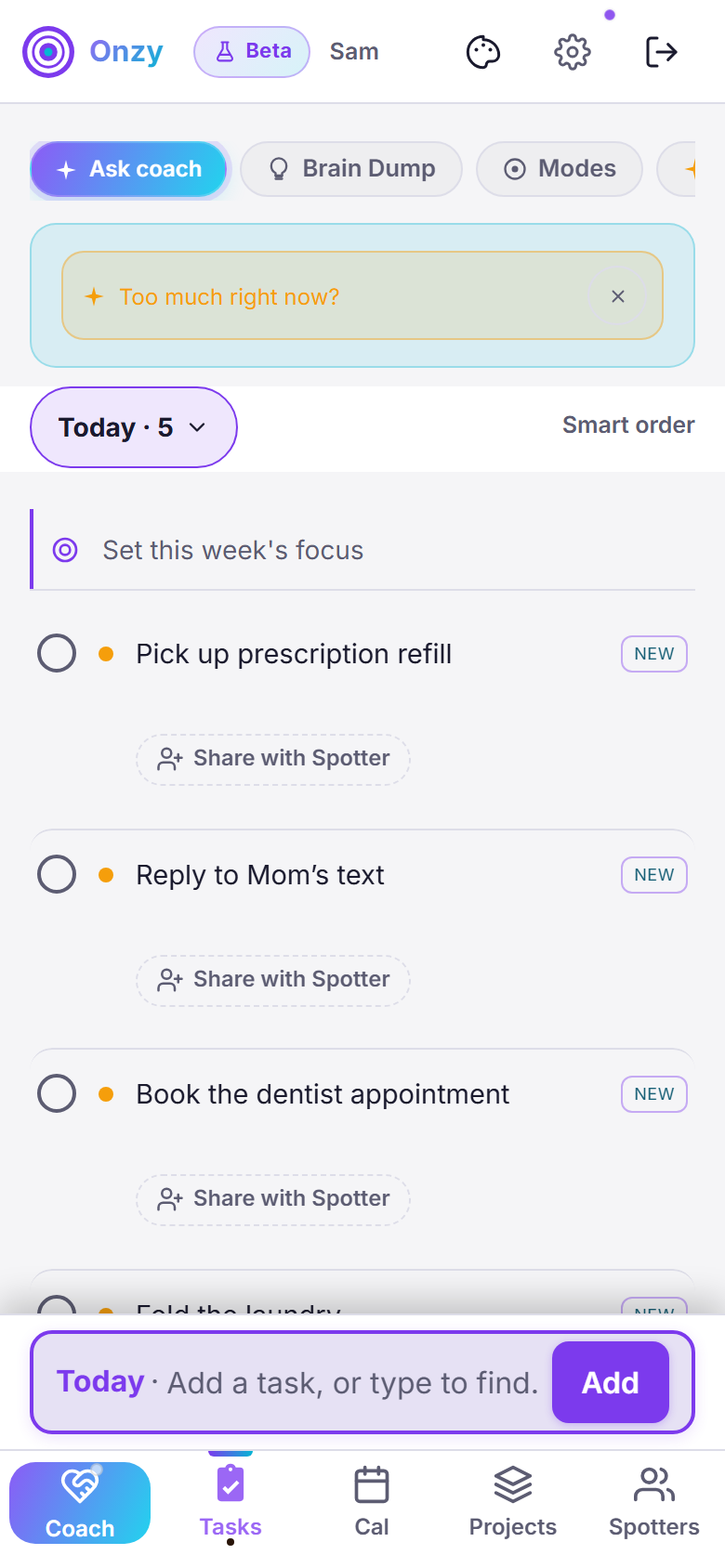
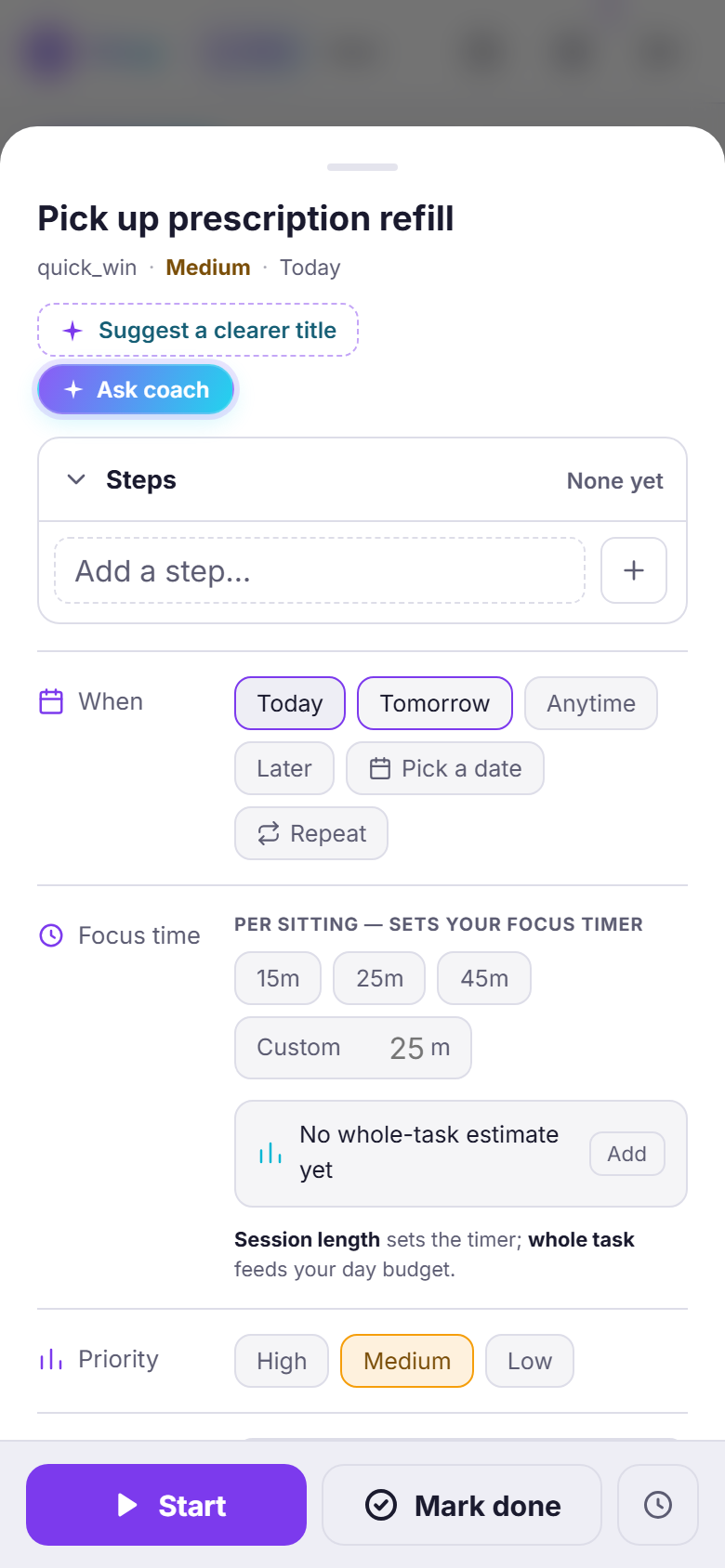
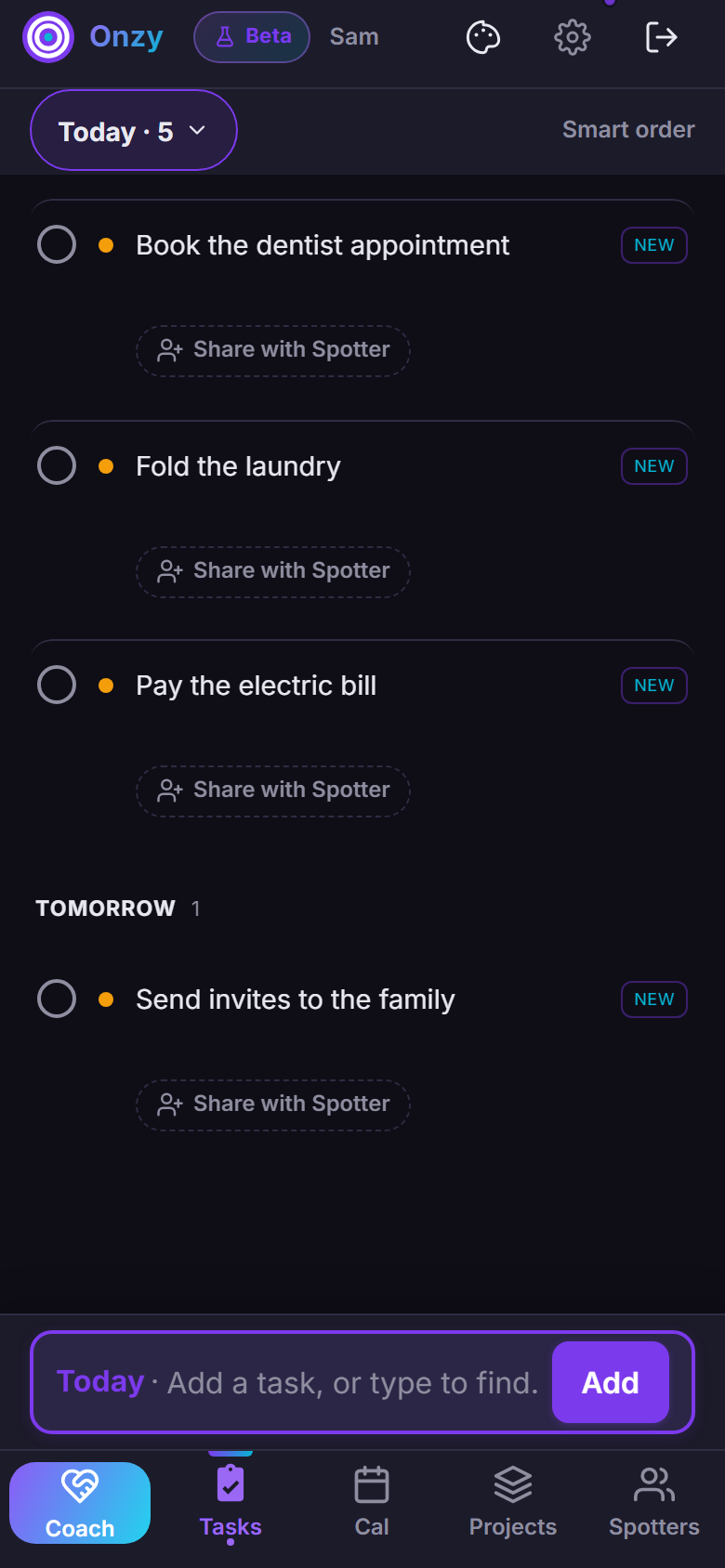
A task is just one thing you want to do. Type it into the add box on Home › List and it lands under Today. (The add box sits along the bottom of the screen on a phone, and just above your list on a computer.) Open any task and you can break it into smaller Steps yourself — or tap Ask coach to have them suggested. When you're done, you tap Mark done and get a little celebration, because finishing matters. You can also move fast with a flick: swipe a task right to finish it (cue the celebration), or swipe left to reveal Defer, Edit, and Remove. On a task's sheet, swipe down to close it — though if you've typed something unsaved, it politely stays open so nothing's lost. And if the quick buttons above your list run off the edge, a little +N › pill shows how many more — tap it to slide over to them.
Why it helps: Big tasks freeze you. A task cut into small, obvious steps gives your brain something it can actually start — and every step you finish is a real win, not a distant one.
A few simple steps
- On Home, stay on the List tab, type into the add box and tap Add.
- Tap a task to open it — add your own Steps, or tap Ask coach for smaller ones.
- Set when it's due (Today, Tomorrow, Anytime, Later, or a date) and a focus time if you'd like a timer.
- Tap Start when you begin, and Mark done when it's finished. Take the win.
- In a hurry? Swipe a task right to mark it done — the same little win, without opening it.
- Swipe left to reveal Defer, Edit, and Remove. Remove leaves an Undo for a moment, so a stray swipe never loses anything.
Untangle: figure out where to start
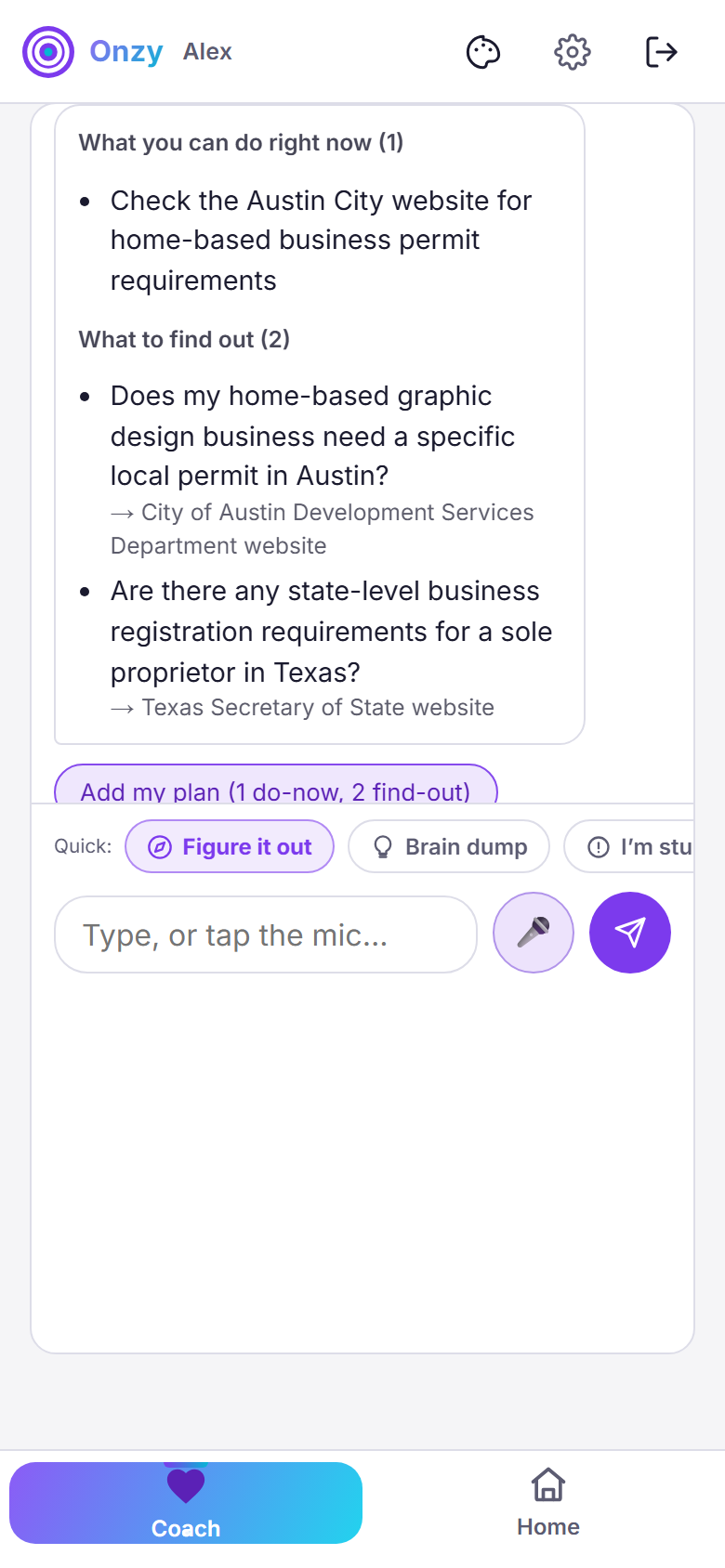
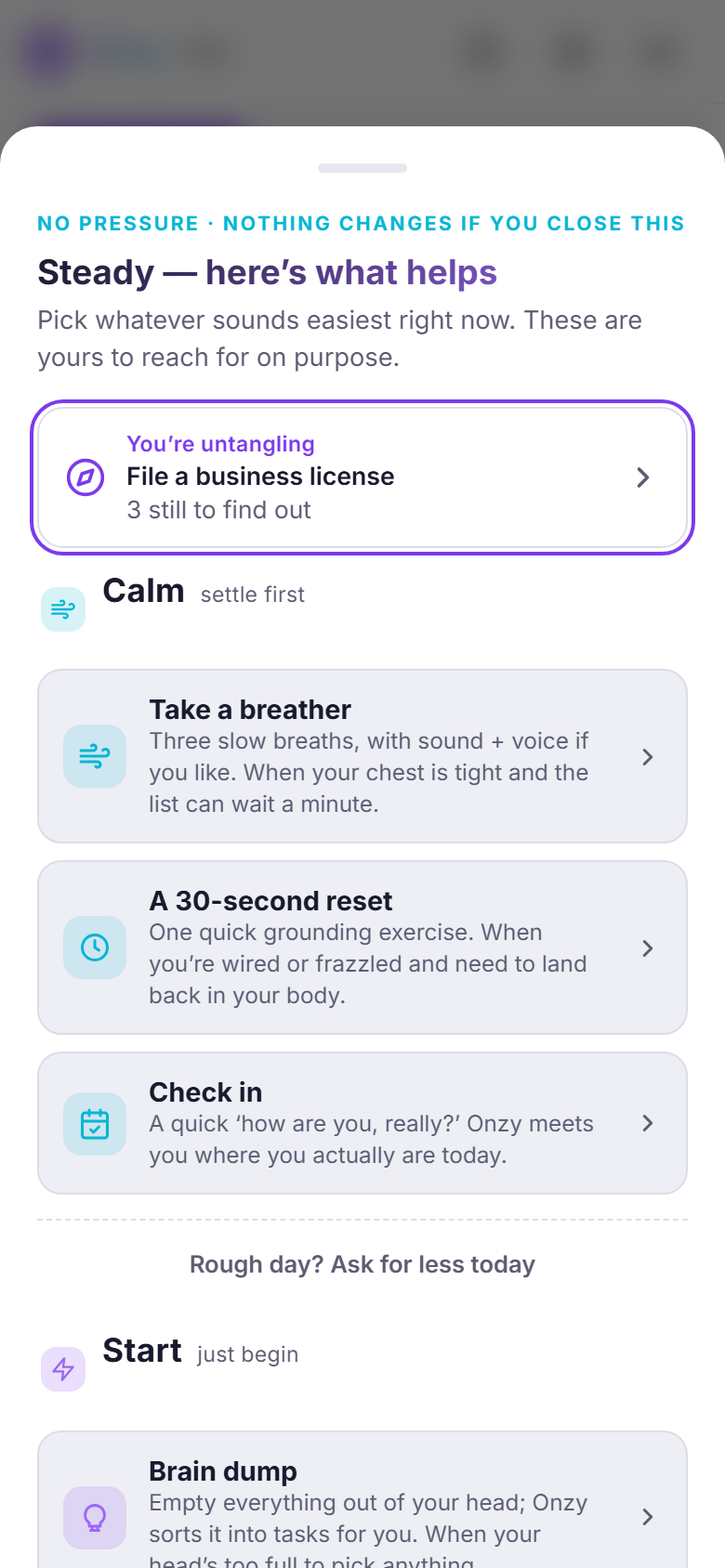
Some things you put off because you forgot. Others you avoid for months because they're confusing — you genuinely don't know where to begin. Untangle is built for those. You type the vague, scary thing exactly as it feels — "I need to file a business license and have no idea how" — Onzy asks a few gentle questions, then lays it out calmly: what you can do right now, what you need to find out, and one tiny first step to break the freeze. It's returnable, so you can come back to it anytime. In the app it's simply "figure out where to start" — on the Coach screen, in the Steady menu, and when you tell Onzy you're stuck on a task.
Why it helps: A normal to-do list assumes you already know the steps — but the things you dread most are the ones you don't understand yet. Turning a foggy, overwhelming task into a few plain, doable pieces is often all it takes to finally begin.
A few simple steps
- Open the Coach tab and tap Help me figure out where to start — it's also in the Steady menu, and offered when you tell Onzy you're stuck on a task.
- Type the confusing thing just as it feels in your head — the vaguer and scarier, the better. There are no wrong answers.
- Answer the few gentle questions Onzy asks — it's just getting its bearings.
- Read it back to yourself: what you can do right now, what you still need to find out, and one tiny first step.
- Take that first step — or don't. It's returnable, so you can pick the thread back up whenever you're ready.
Energy check-in
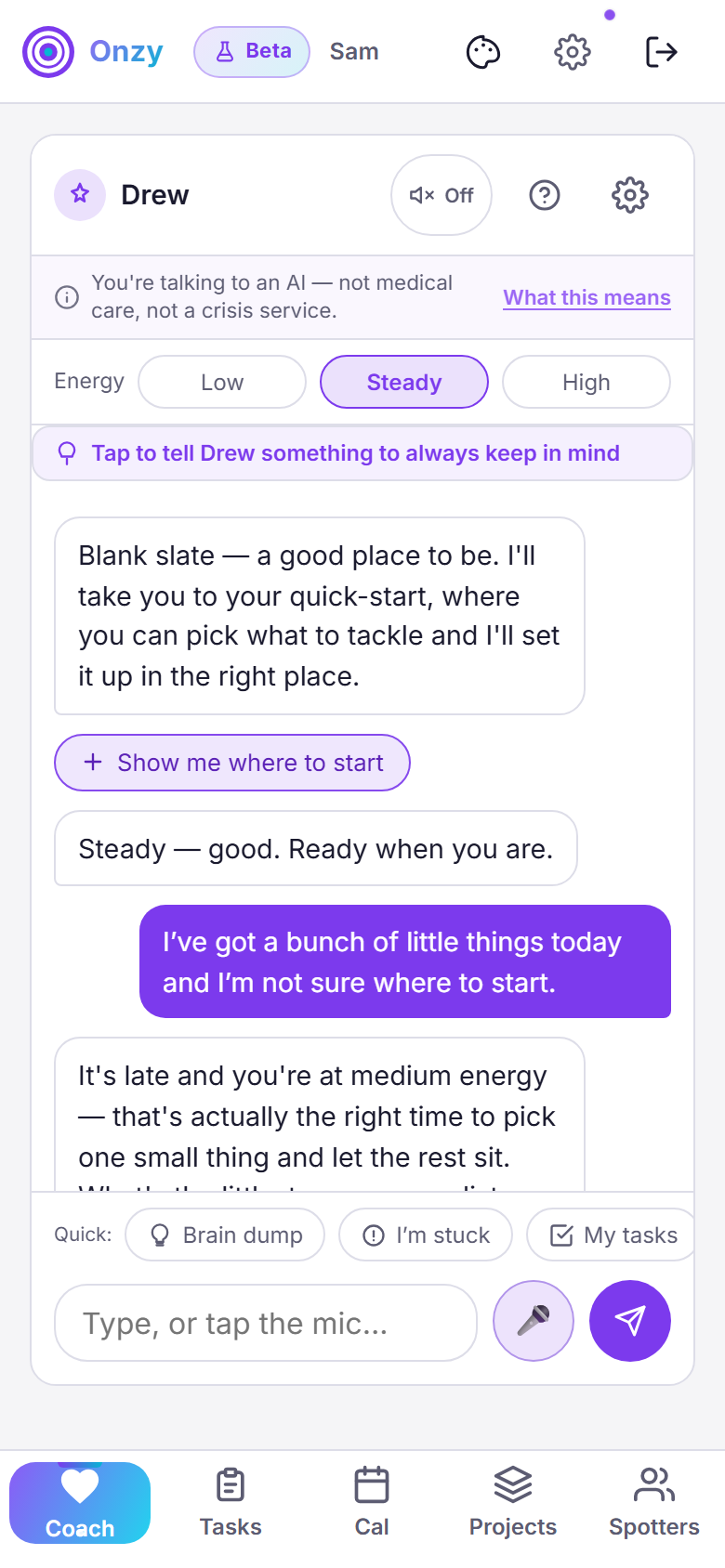
On the Coach screen there's a quick Energy row — Low, Steady, or High. Tap where you are, and the coach takes it in and adjusts what it suggests, instead of pushing the same plan at you every day.
Why it helps: Some days you can tackle the hard thing; some days you can't. Telling the coach your real energy means you stop fighting yourself — and you actually get going.
A few simple steps
- Open the Coach tab — you'll see Energy with Low, Steady, and High near the top.
- Tap the one that matches how you feel right now.
- The coach takes it in and tailors its next suggestion to your energy.
- Feeling different later? Tap again anytime.
When it's a lot: Steady
On your Today screen there's a calm Steady button. On a heavy day it gently stands out a little more — but it never nags, never shows a number, and you can always ignore it. Tap it and a few soft options open in one place: take a breather (a slow breathing pause), shrink one thing (turn a big task into a tiny two-minute first step), a 30-second reset (a quick grounding exercise), pick one thing (Onzy points you at a single easy start), and reach out to a Spotter (tell someone in your corner you're having a hard time). The breather can guide you now with a calm voice and soft breathing sounds — and two little switches right there, Breathing sounds and Coach voice, let you mute either one on this device. Prefer quiet, or have reduced motion on? The breather stays silent and still.
Why it helps: When everything feels like too much, the brain freezes — and it won't go hunting for the right button. One calm door lowers the wall for you, with no numbers and no shame, so the next small step is easy to reach for.
A few simple steps
- On your Today screen, tap Steady — it's there whenever you need it.
- Pick whatever fits — the tools are grouped by what you need: settle down (a breather, a 30-second reset, a quick check-in), get started (brain dump, shrink one thing, pick one thing), focus, or reach out (coach chat, or tell a Spotter you're having a hard time).
- Just need a person? Reach out to a Spotter opens a warm, ready-to-edit message — never a task, never a gate. (No Spotters yet? It gently points you to add one first.)
- In the breather, tap Breathing sounds or Coach voice to mute either one — your choice sticks on this device.
- Follow the one small thing it offers — that's usually all it takes to get unstuck.
- Not feeling it? Close it and carry on. It never pushes, and it's always there next time.
When life's handed you something big
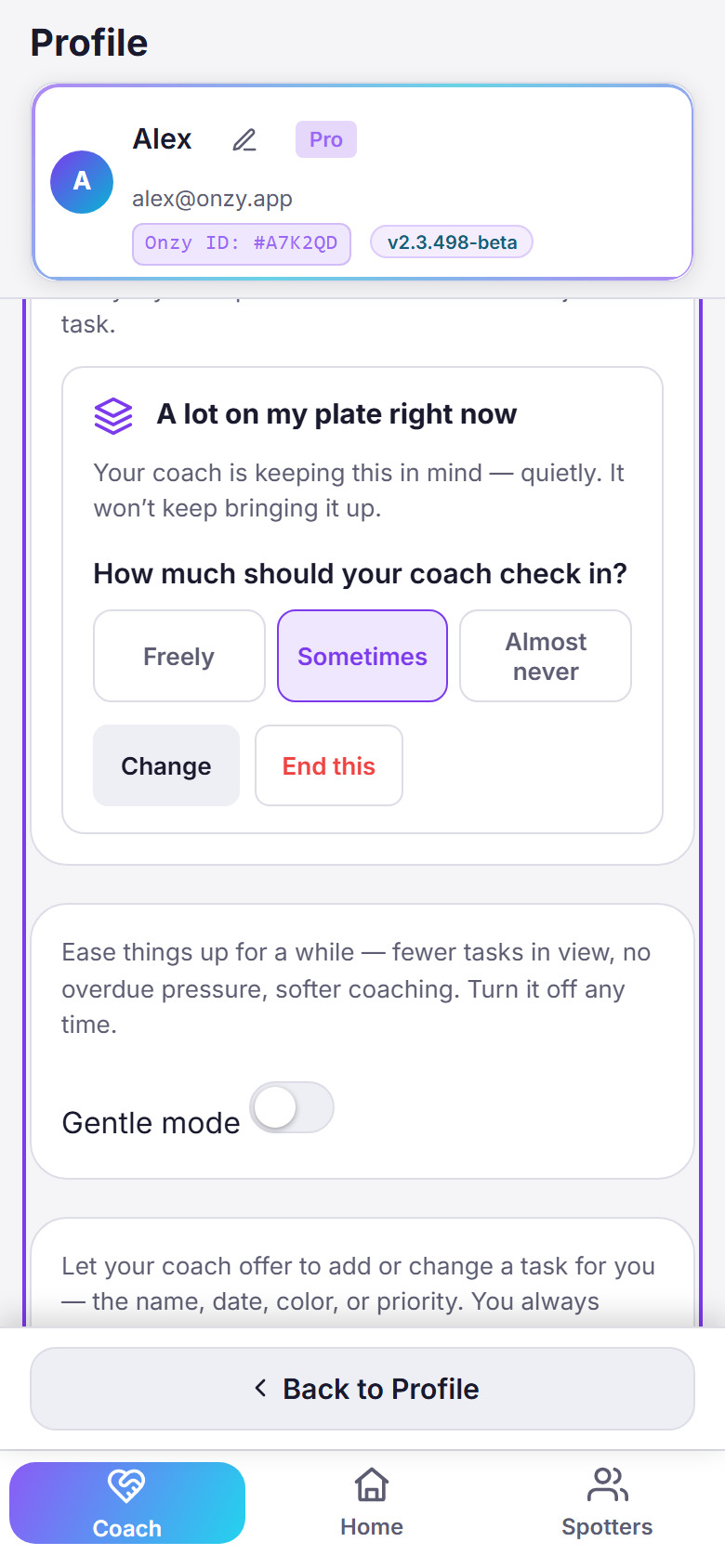
Some hard patches aren't one rough morning — they're a whole stretch: healing from surgery, an illness, a loss, a lot on your plate, or a big crunch. You can quietly tell your coach in two places: right on the Coach screen, where it gently asks "Is something going on today?" — tap "Let your coach know" — or under Settings → Coach & AI. Either way it keeps it in mind, lowers the bar, and eases off the pushing — and you can change or end it anytime. On a genuinely heavy day, Onzy may gently offer this to you, too. It's private context, never medical or diagnostic.
Why it helps: A hard season isn't a productivity problem, and the last thing you need is an app treating it like one. Telling your coach once means it can go gentle for as long as you need — without having to explain yourself over and over.
A few simple steps
- On the Coach screen, tap "Let your coach know" when it asks "Is something going on today?" — or open Settings → Coach & AI and find "Something going on right now?".
- Slide to what fits — healing, feeling unwell, a loss, a lot on your plate, or a big crunch — and the note updates as you go.
- Set how often your coach checks in: Freely, Sometimes, or Almost never — a hard stretch, met on your terms.
- Save, and your coach quietly goes gentle — a small, calm note, not a banner. Change it or end it whenever you're ready. Coming back up when you can is the win.
The coach
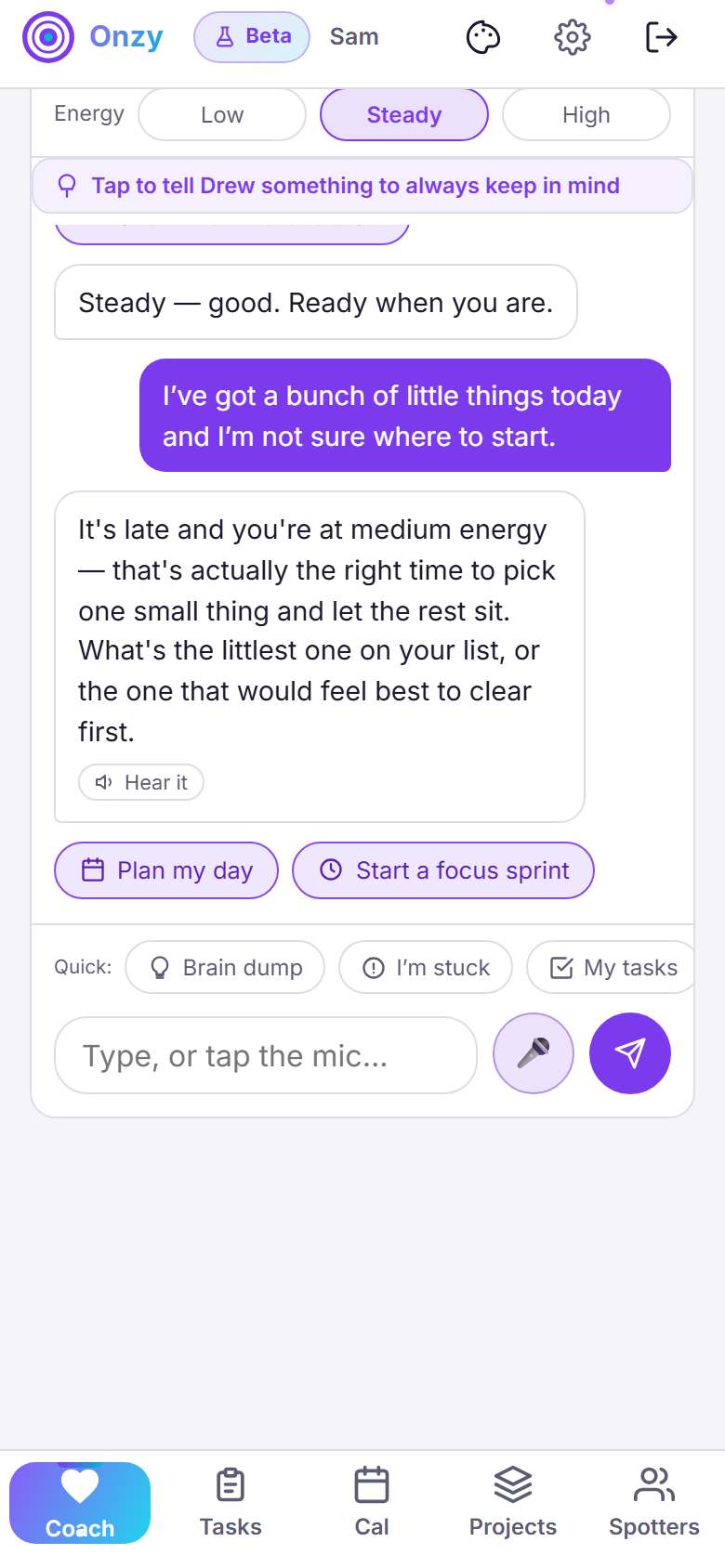
The coach is a friendly thinking partner you can talk to whenever you're stuck. Tell it what you're working on or how you're feeling, and it helps you find one small next step. It remembers what you've shared, so it never starts from scratch. It's an AI helper — not a person, and not medical advice — just there for the moment you can't quite begin.
Why it helps: Sometimes the wall isn't the task — it's talking yourself into starting. A patient, judgment-free voice in your corner can be the nudge that gets you moving.
A few simple steps
- Open the Coach tab and type what's going on — "I can't start this" is enough — or tap the mic to say it.
- Not sure where to begin? Tap a quick button: Brain dump, I'm stuck, or My tasks.
- Follow the small next step it suggests. That's usually all it takes.
- On more than one device? Turn on Cross-device coach chat under Settings and protect it with a PIN — your conversation then picks up where you left off, wherever you are.
- Want to hear a reply out loud? Tap Hear it on any coach message — it reads the reply aloud and gently highlights each word as it goes, so you can follow along. This is for everyone, free included.
- On Pro, set the coach's voice and tone under Settings → Coach & AI.
Spotters: your people, in your corner
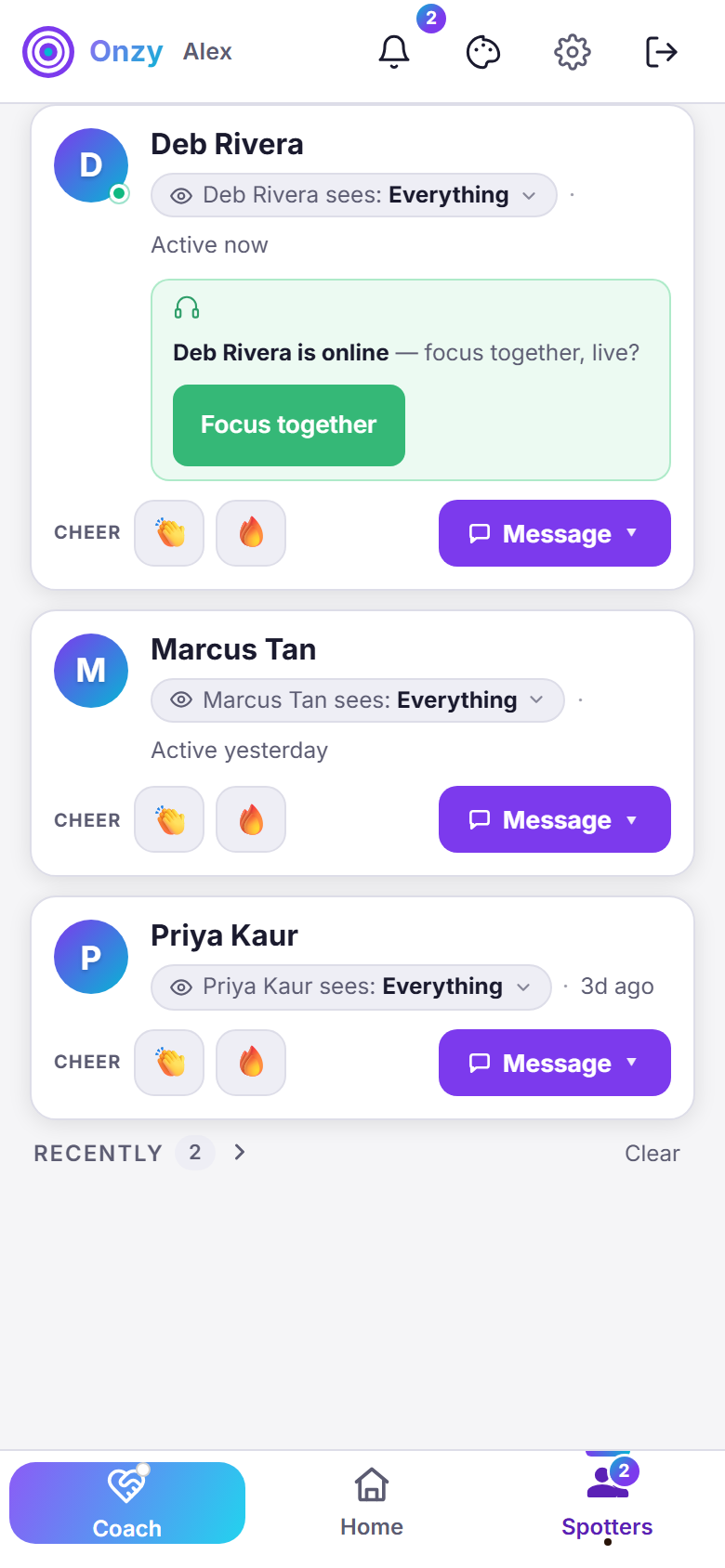
Spotters are real people you invite — a friend, a partner, a sibling, a teammate — to quietly root for you. They're not followers, and it's not a competition: there's no feed, no rankings, no leaderboard. Your Spotters live on the Spotters tab as a simple list, each with their full name, a small status dot (whether they're around right now), and when you two last connected. A "sees:" chip on each card shows — and lets you change — exactly what that Spotter sees of you. Each card also has a one-tap cheer and a Message button that opens every way to reach that person in one place.
Why it helps: We follow through more when someone's in our corner. A Spotter isn't there to check up on you — they're there to notice the small wins with you, and that's exactly the fuel that makes the next start easier. Spotters aren't a competition.
A few simple steps
- Open the Spotters tab to see everyone in your corner as a simple list — full names, a status dot, and when you last connected.
- Send a quick cheer right from the card (a tap of 👏 or 🔥), or tap Message ▾ to open every way to reach them — a message, a commitment, or a focus-together session — in one clean place.
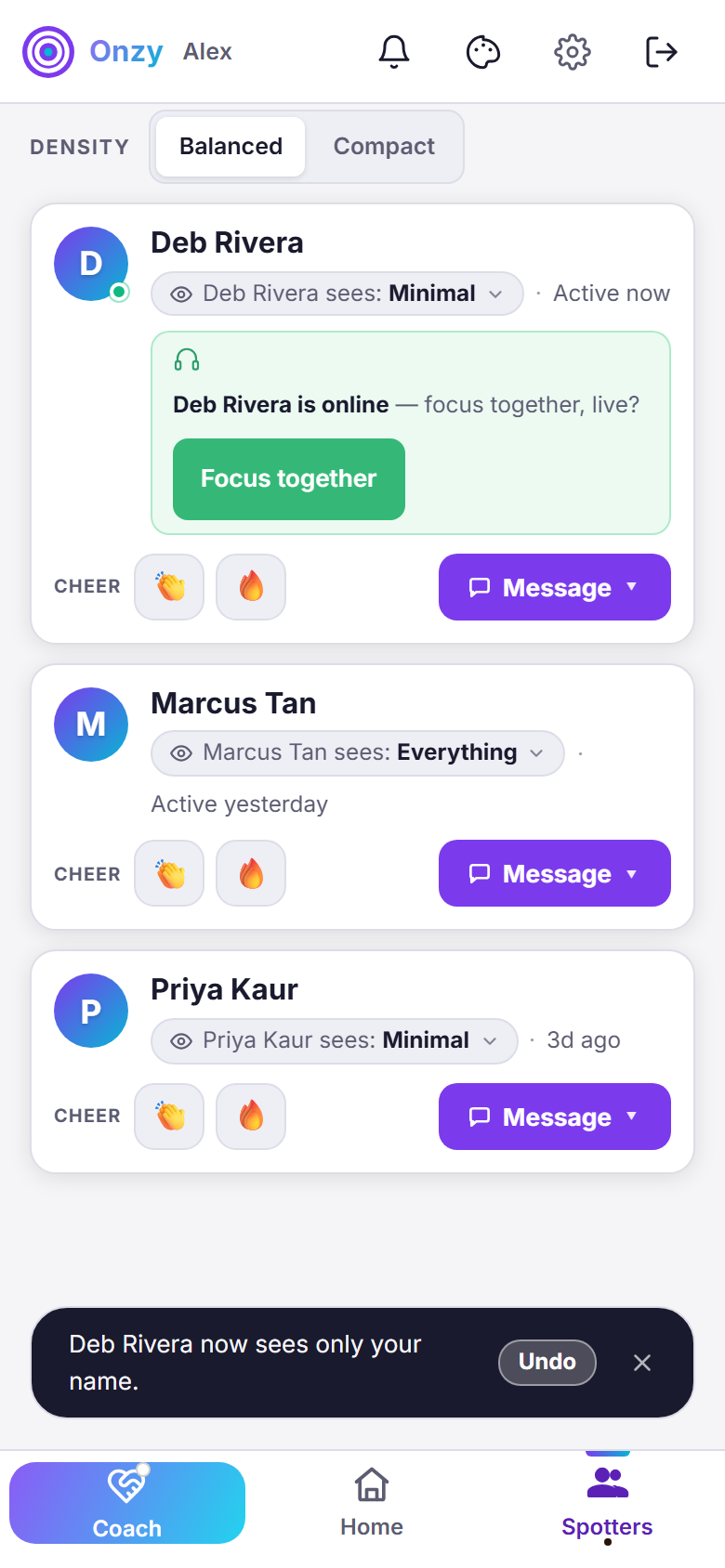
- Prefer to see more people at once? Switch the density from Balanced to Compact for a tighter one-line view.
- There's no score and nothing to keep perfect — it's people in your corner, not a scoreboard.
When a Spotter messages you
When a Spotter sends you a cheer or a message, Onzy makes sure you actually see it — gently. You'll notice a warm count on the Spotters tab (a soft cyan-to-purple number, never an alarm-red badge) from anywhere in the app, plus a small bell in the top corner. If you're in the app when it arrives, a soft banner slides down for a few seconds — "Deb sent you a message — View" — then tucks itself away. On the Spotters screen, that person's card floats to the top with a NEW marker and a one-line preview you can tap.
Reading & replying: tap the preview or the bell to open a light message thread — their notes and your replies in one place. Replying is completely optional: react with an emoji, send a quick line, or (on Pro) send a voice note. There's no "unread" guilt and nothing you're behind on.
Why it helps: A kind word only helps if it reaches you — but an inbox you feel "behind on" would do the opposite. So Onzy surfaces a Spotter's message warmly and then lets it go. You see it, you feel it, and you reply only if you feel like it.
A few simple steps
- Spot the warm count on the Spotters tab, or the bell in the top corner — either one means someone reached out.
- In the app when it lands? A soft banner slides down — tap View to jump straight to the message.
- On the Spotters screen, the sender's card floats to the top with a NEW marker — tap its preview line to read the thread.
- Reply if you feel like it — no pressure to. Tap an emoji reaction, type a quick line, or (on Pro) send a voice note.
Quiet by design — respects Do-Not-Disturb & Gentle mode
What your Spotters can see
Spotters are in your corner, not in your business. On every Spotter's card there's a "sees:" chip you tap to choose exactly how much that person sees of you — set independently for each Spotter. Three levels: Everything (the default — your presence, your momentum and streaks, and the encouragement you two exchange), Momentum (only your wins and momentum — no presence, no struggles), or Minimal (just your name). Your private tasks and notes are never shown by these levels — a task reaches a Spotter only when you deliberately tap Share with Spotter on it, and that one share is always honoured, even at Minimal.
Why it helps: Accountability shouldn't cost you your privacy. You decide, per person, how much each Spotter sees — and you can dial any Spotter up or down anytime. The details stay yours unless you choose, one task at a time, to let a Spotter in.
A few simple steps
- On any Spotter's card, tap the "sees:" chip to cycle what that Spotter sees — Everything → Momentum → Minimal — with a quick confirmation and an Undo.
- Set it per person: one Spotter can see everything while another sees only your name.
- Your tasks, notes, and personal details are never shared by these levels — only what you choose.
- Want to share one task? Open it and tap Share with Spotter — only that task is shared, and you can unshare it just as easily.
Circles: a small group, shared momentum
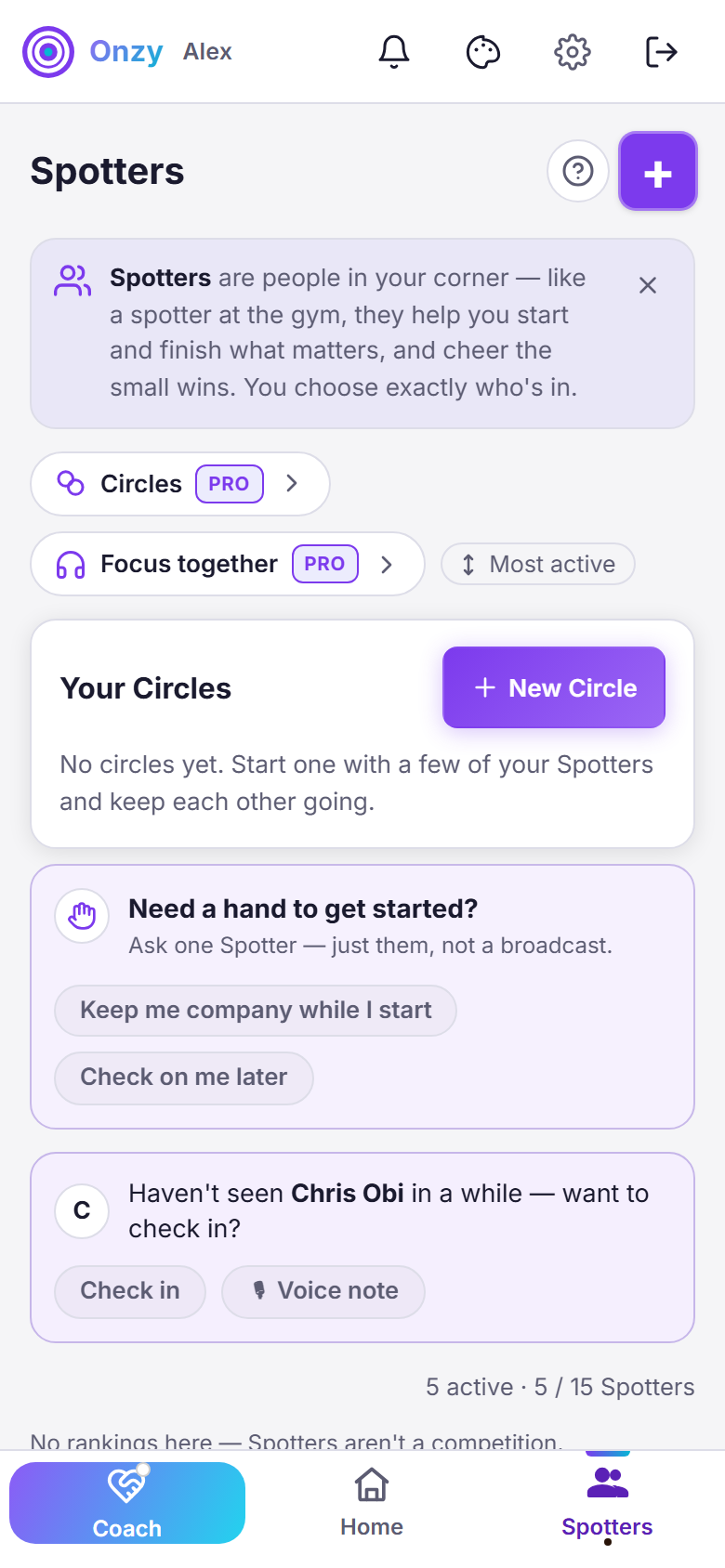
A Circle is a small group of Spotters who keep momentum together — a few friends, a study group, siblings. Everyone in a Circle can cheer each other on, and you build shared momentum as a group instead of one-on-one. Circles live at the top of the Spotters screen — a Circles chip, plus a Your Circles card with a + New Circle button. When you start one, you pick people from a real list — a checkbox, avatar, and full name for each, with a running "2 selected · 3 of 8 in this circle" count (you're always the +1). They're already your Spotters, so no cold invite goes out — we just ask if they'd like to join, and they say yes. A Circle holds up to 8 (you + 7).
Why it helps: Some things are easier with a few people than with one. A Circle keeps the same no-shame, no-leaderboard feeling — just a little group warmth around the small wins.
A few simple steps
- On the Spotters tab, tap the Circles chip (or + New Circle in the Your Circles card).
- Give your Circle a name.
- Pick people from your Spotters — check the ones you want; the counter shows "N selected · M of 8 in this circle." They're already your Spotters, so they just get a gentle ask to join.
- Create it, and cheer each other on. Nobody's ranked — it's shared momentum, not a scoreboard.
Circles are a Pro feature
Focus together: side by side
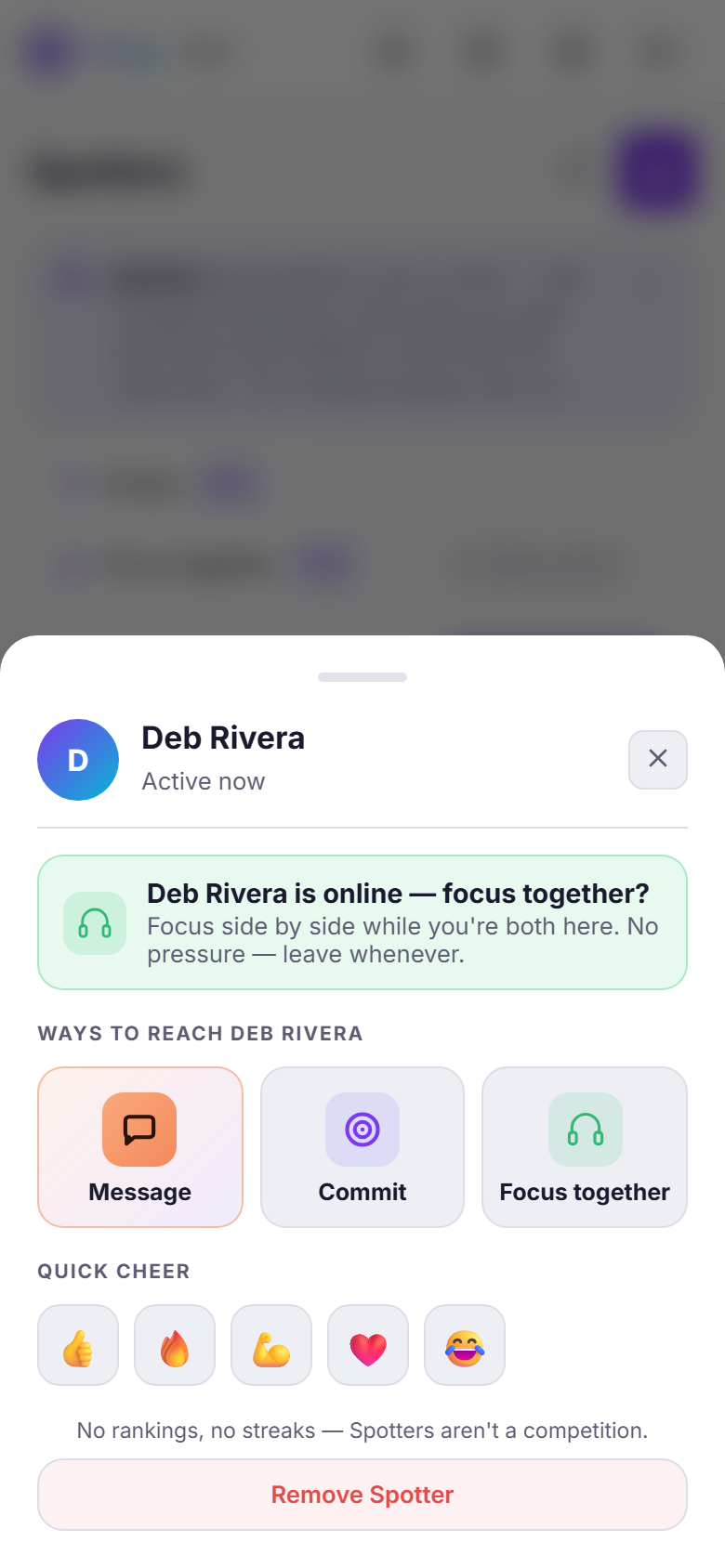
Focus together (some people call it body-doubling) is a quiet focus session you share with a Spotter — you both work on your own things at the same time, just knowing someone's there. When a Spotter is online, Onzy floats a gentle green "online — focus together, live?" to the top of their card; you can also start one from a Spotter's Message ▾ sheet, or the Focus together chip at the top of the Spotters screen. It's presence, not pressure: cameras off, no talking required, just company for the hard part — starting.
Why it helps: For a lot of people the hardest part is starting alone. Having someone quietly present — even doing their own thing — is a well-known way to get going: you borrow a little accountability without any performance.
A few simple steps
- When a Spotter's online, tap the green Focus together at the top of their card.
- Or open a Spotter's Message ▾ sheet and choose Focus together — or tap the Focus together chip at the top of the Spotters screen.
- Work on your own thing — the point is company, not conversation.
- Leave whenever you're done. Nothing's logged, nothing's scored.
Inviting Spotters (and how many)
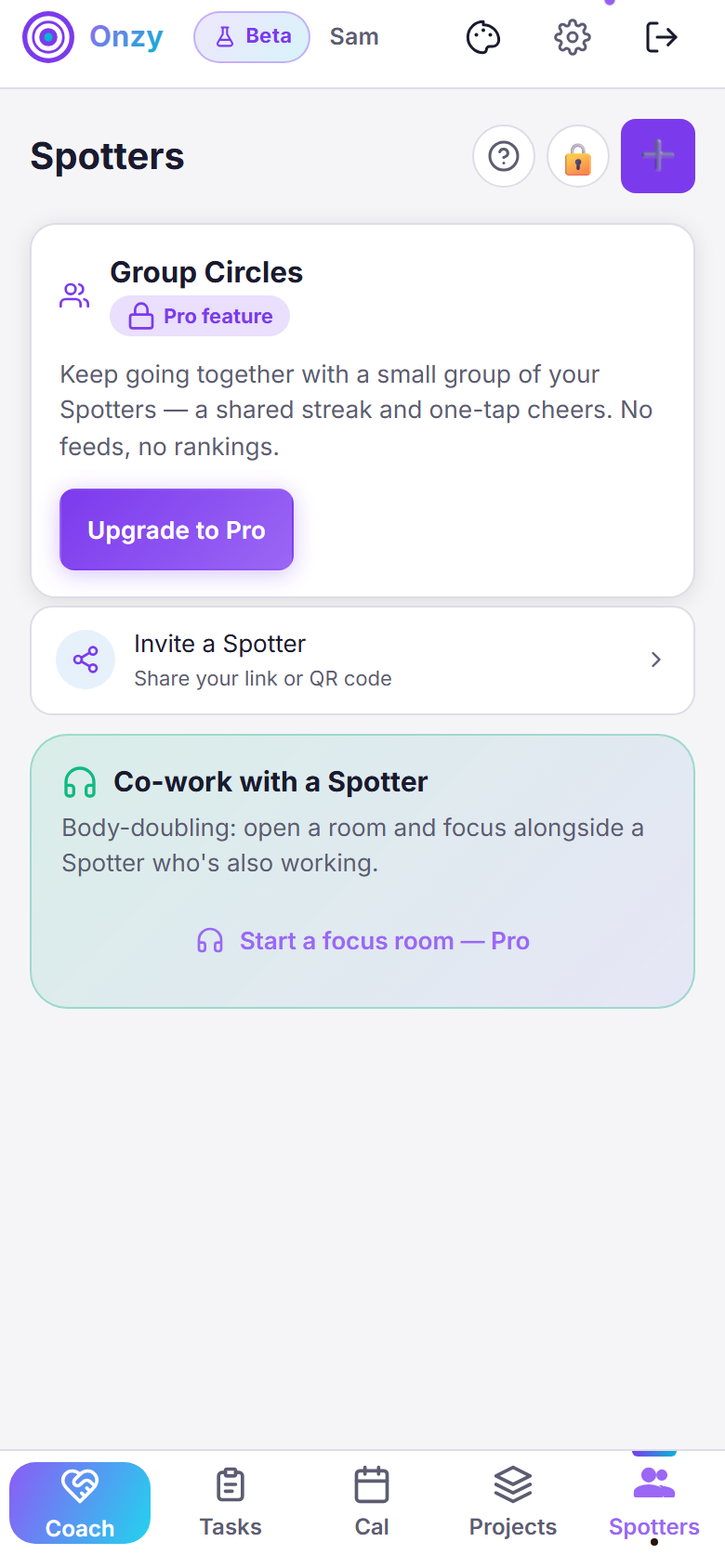
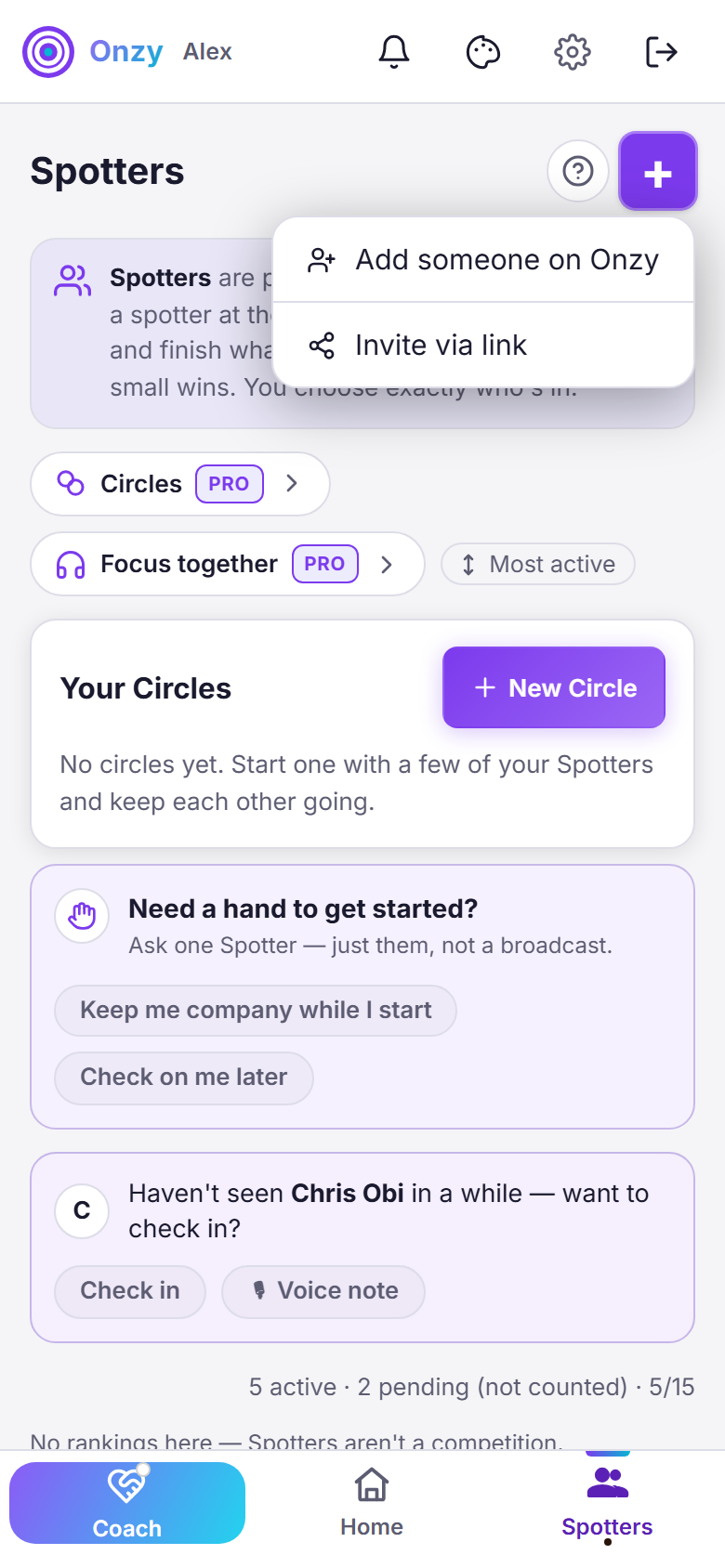
To add someone, tap + Add Spotter — a small menu gives you two ways: Add someone on Onzy (by their Onzy ID) or Invite via link (share a private link with someone you trust, and they join by opening it). An invite you've sent but that hasn't been accepted yet is pending, and pending invites don't count against your limit: you'll see something like "5 active · 2 pending (not counted)", with pending ones clearly set apart. Free accounts can have a handful of Spotters; Pro raises the number (and unlocks Circles and voice replies).
Why it helps: The people who help most are the ones you actually trust, so inviting is deliberate and private — a link you choose to share, not a public profile. And a pending invite never eats your slots, so reaching out costs you nothing.
A few simple steps
- On the Spotters tab, tap + Add Spotter, then choose Add someone on Onzy or Invite via link.
- Until they accept, the invite shows as pending — and pending invites don't count toward your limit.
- Watch the count: "5 active · 2 pending (not counted)" tells you who's in and who's still deciding.
- Near your limit? Pro adds more Spotters, plus Circles and voice replies.
Free to start · Pro adds more Spotters, Circles & voice replies
Momentum, not a streak to protect
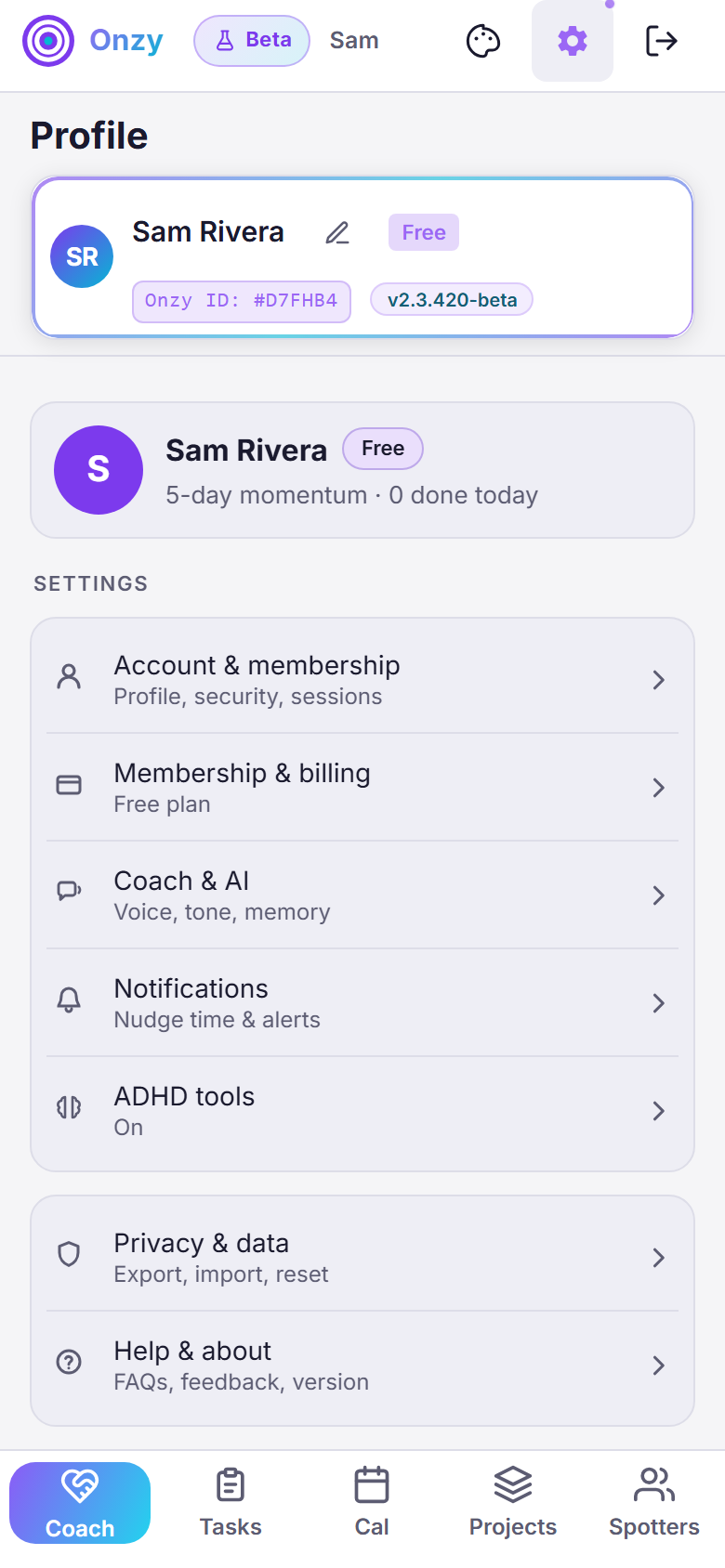
Onzy keeps a gentle momentum count — how many days you've shown up — right on your profile, next to how many tasks you've finished today. Miss a day and nothing shatters: no red badge, no guilt, no "you ruined it." Tomorrow is simply a fresh start.
Why it helps: Most streak apps punish the miss, and shame makes it harder to come back. Onzy keeps the good feeling of momentum without the trap — so one off day never turns into giving up.
A few simple steps
- Finish at least one task and your momentum ticks up — shown as, say, "1-day momentum".
- Open your profile (the gear icon, top corner) to see your momentum and today's done count.
- Miss a day? No penalty and nothing to "protect" — a Spotter may just quietly check in.
- Come back tomorrow. Starting again is the win.
What you've knocked out
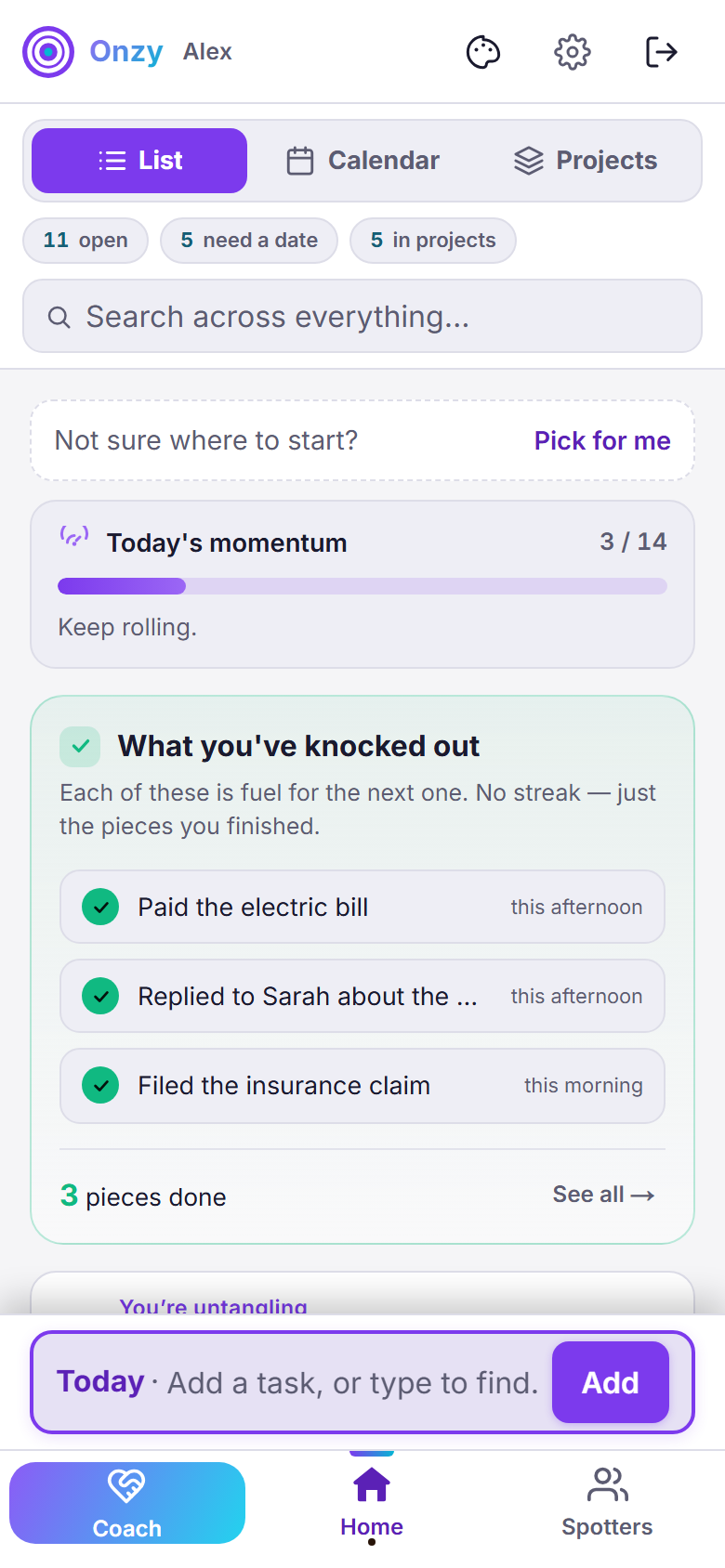
On your Today screen there's a small card that gathers up the things you've just finished, so a win doesn't vanish the moment you check it off. It shows your recent finishes, each with a checkmark and when you did it — and a genuinely hard one gets a quiet "the hard one" note. There's no streak, no quota, and no score to keep — just the pieces you got done. Tap See all to look back over everything you've finished.
Why it helps: Finishing something and watching it disappear off the list can make the effort feel like it never happened. Keeping your wins in view turns each small finish into fuel for the next start — which is exactly how momentum builds.
A few simple steps
- Finish any task and it drops straight into What you've knocked out on your Today screen.
- Glance at it whenever you need proof you're moving — each finish shows when you did it, and a hard-won one is quietly marked.
- Tap See all to look back over everything you've finished. Nothing to protect, nothing to keep perfect.
Projects & calendar
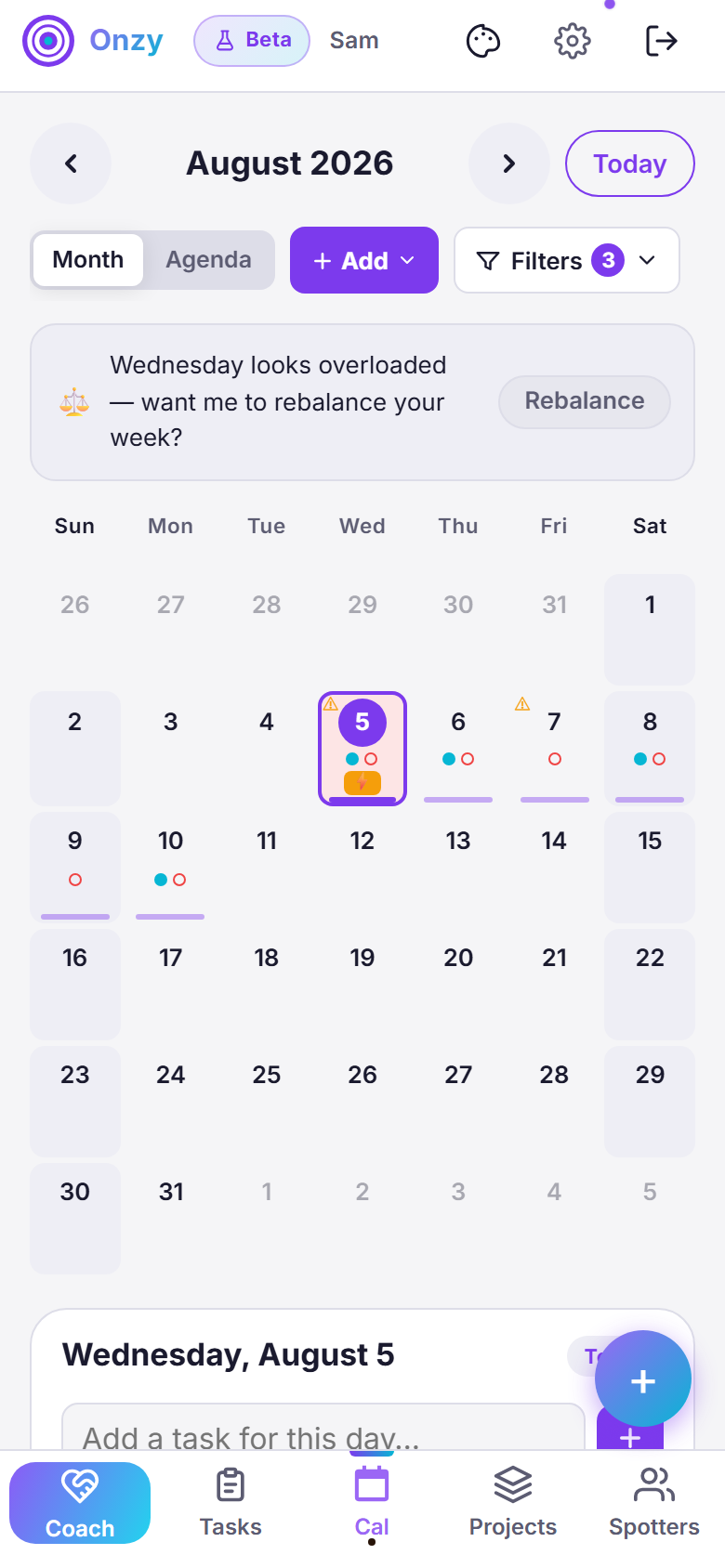
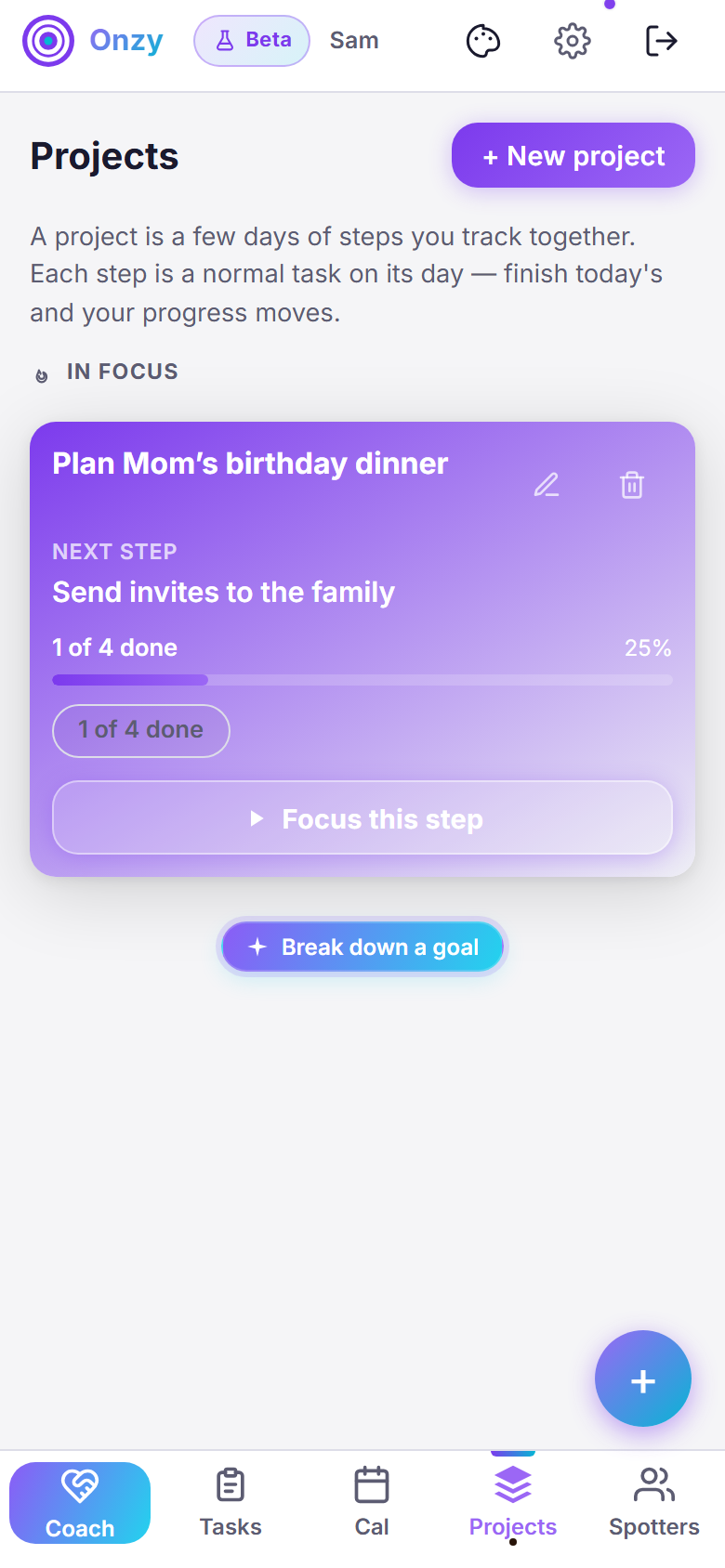
Both of these live on Home, next to your list. The Calendar tab lays your month out as a grid, with a small marker on any day that has something on it. Tap a day to see just that day's tasks below — so instead of one scary wall of everything, you only ever look at today. When something's too big for one task, break it into a few smaller tasks and spread them across the days you'll actually do them. The Projects tab is the third one along: when a goal takes several days, break it into steps and Onzy tracks your progress as you finish each one — the next step is always waiting for you. It's all the same set of tasks — the tabs just change how you're looking at them.
Why it helps: Big goals feel impossible all at once. Spreading them across days means you only ever face today's small step — and seeing just one day at a time keeps it from overwhelming you.
A few simple steps
- On Home, tap the Calendar tab to see the whole month; days with tasks show a little marker.
- Tap any day to open its list below — or add something straight to it with Add a task for this day.
- Switch between Month and Agenda up top, and narrow things down with Filters.
- Break a bigger goal into smaller tasks and place each on the day you'll tackle it.
Color labels for a little context
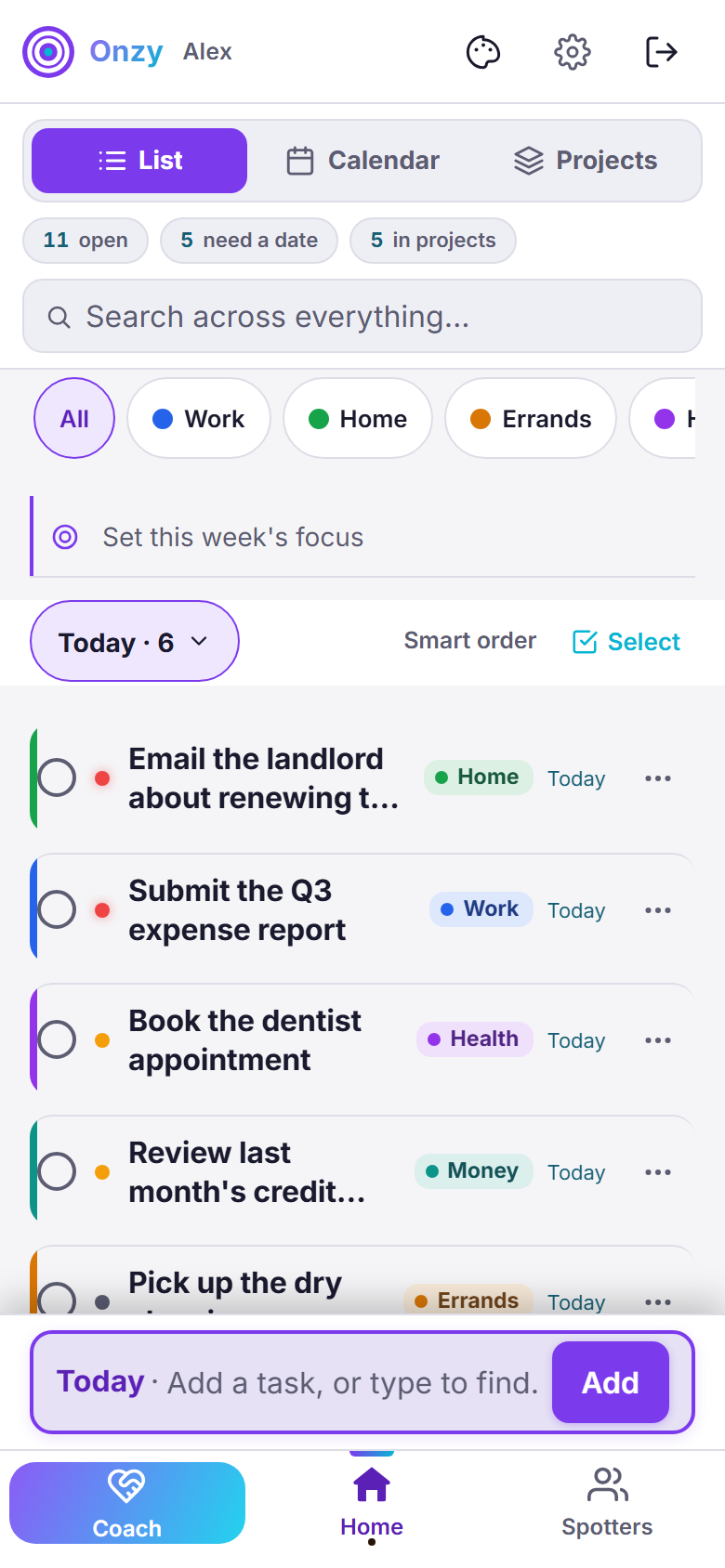
Labels are an optional, color-coded way to tag what a task is about — Work, Home, Errands, Health, Family, or Money. A labeled task shows a colored stripe down its edge and a small name chip, everywhere it appears — your list, the calendar, and projects. When you add a task, Onzy may quietly suggest a fitting label; tap the chip to accept, or just ignore it. Labels are always yours to set, change, or skip.
Why it helps: When everything sits in one list, your eyes have to read every word. A dab of color lets you see at a glance what's work and what's home — and lets you focus on just one kind of thing when that's all you have room for right now.
A few simple steps
- To label a task you already have, open its ⋯ menu (or open the task itself) and tap Set color, then pick one — Work, Home, Errands, Health, Family, or Money.
- Adding a new task? If Onzy spots a fit, a small "Tap to tag" chip appears — tap it to accept the suggestion, or carry on without it.
- Labeled tasks carry their colored stripe and name chip across your list, calendar, and projects — same label, wherever the task shows up.
- Once you've a couple of colors going, a color row appears above your list. Tap a color to see only those tasks; tap it again, or tap All, to bring everything back.
Notifications & dark mode
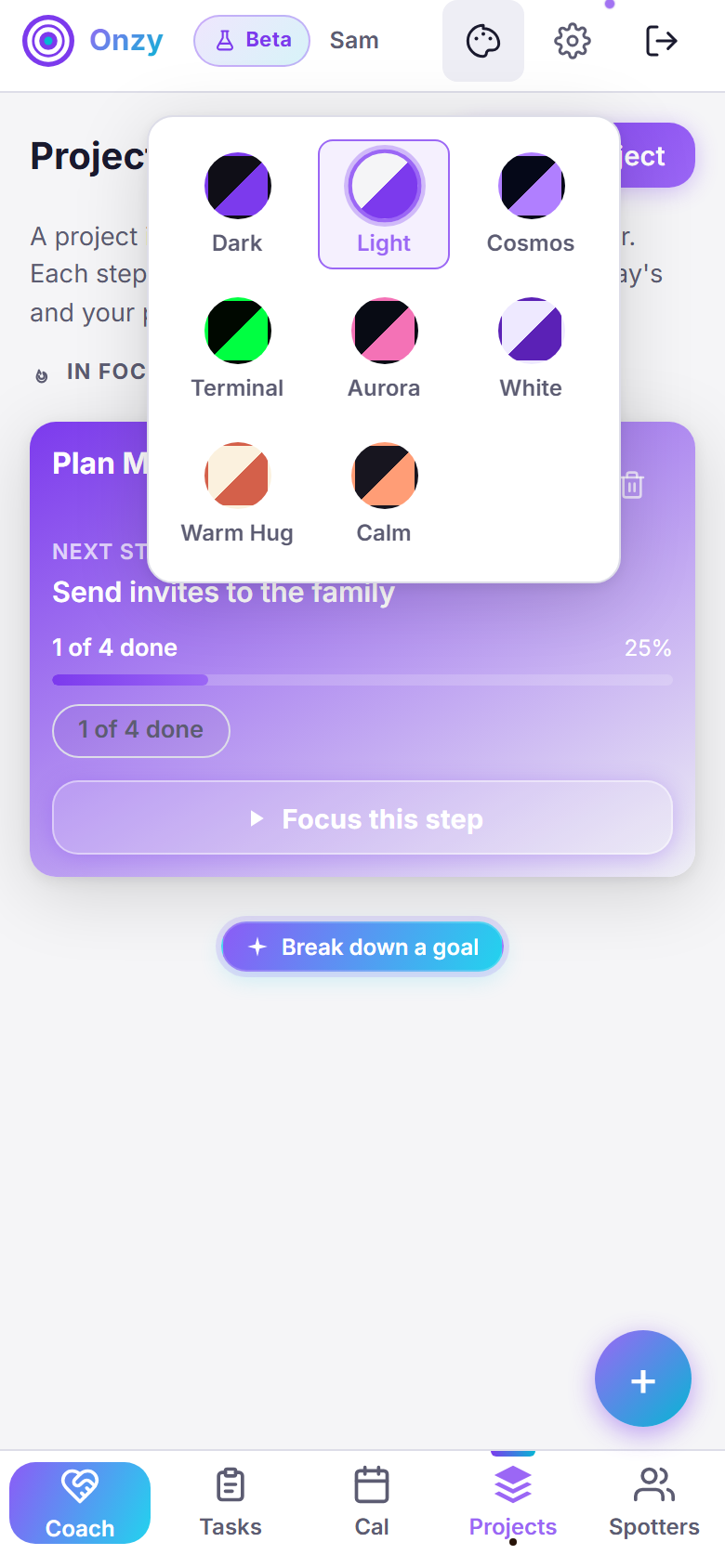
You decide how much Onzy speaks up, how it sounds, and how it looks. Set one gentle daily nudge if reminders help you — or none at all. Choose the sound that plays when you finish a task under Settings → Sound: Fanfare, Signature, Zen, or Silent, each with a preview. And tap the theme icon in the top bar to pick a look: bright Light, full Dark, or one of several in between like Cosmos, Aurora, or Warm Hug.
Why it helps: The right reminder at the right time can be the difference between starting and forgetting — and comfort matters, so the app should feel good to open, day or night.
A few simple steps
- Tap the theme (palette) icon in the top bar and choose a look — Light, Dark, or ones like Cosmos or Warm Hug.
- For your finish sound, open Settings → Sound and pick Fanfare, Signature, Zen, or Silent — tap the little play button to hear each one first.
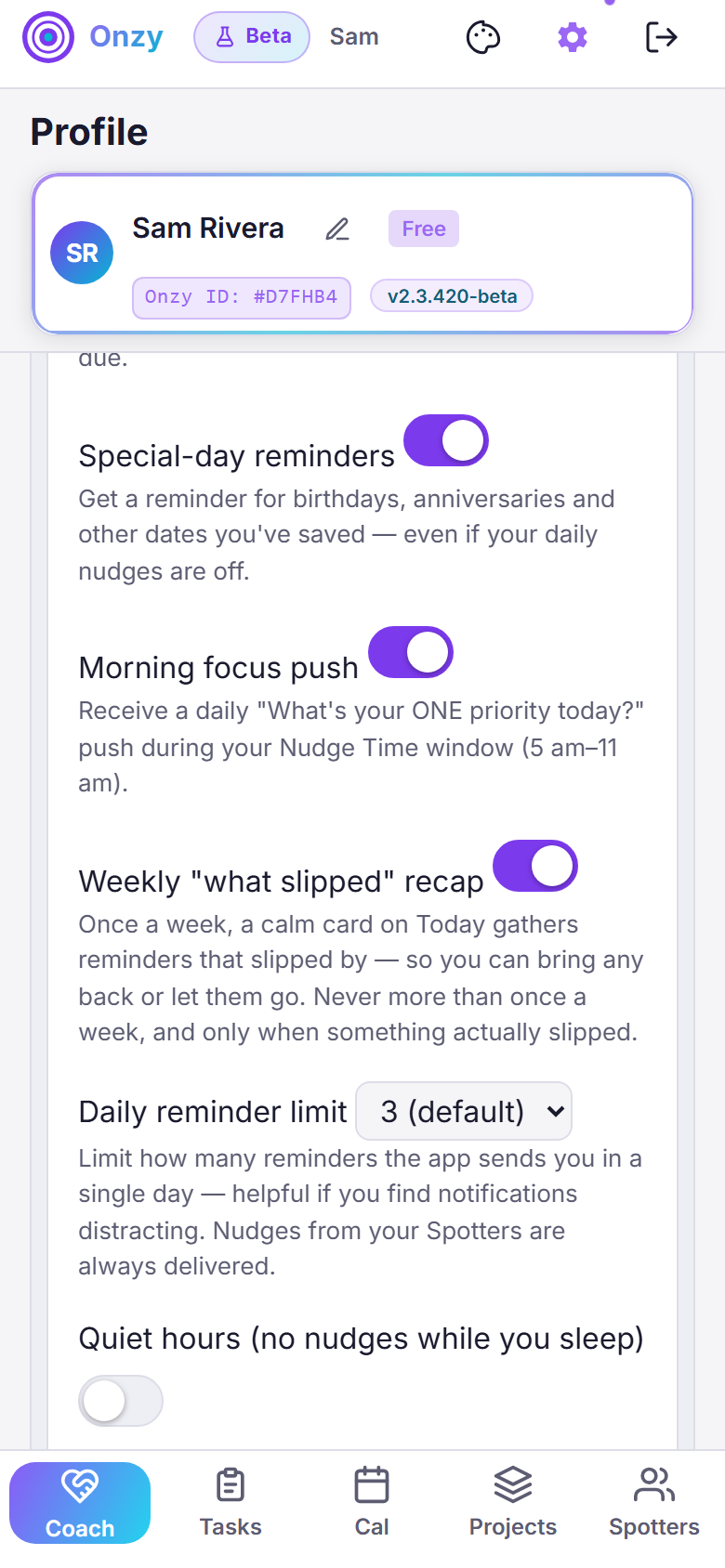
- For reminders, open your profile (gear icon) and tap Notifications.
- Under Nudge Time, pick a time for one daily reminder and tap Save.
- Prefer no nudges? Just leave the time unset — Onzy stays quiet.
- Don't want the What's new popup after an update? Turn off Show "What's new" after updates under Notifications — big feature and security notes still come through.
Free to start · Pro adds unlimited coaching & more Spotters
Ready to try it yourself?
The beta's open right now — no invite needed. Free to start, and you can explore every feature above.
Try Onzy beta now →Still deciding? See what Onzy does or get support.